
Your blog has its own address, which you can share anywhere: in your social media bio, in your newsletter or on your bio page.
The blog address
- On selfpage.link: your bio page alias, followed by
/blog. For example, if your page isselfpage.link/studioana, your blog is atselfpage.link/studioana/blog. - On your domain: if you've connected your own domain, your blog is at
yourdomain.com/blogand your articles atyourdomain.com/blog/article-slug. This is the recommended option for a professional brand and for SEO.
The easiest way to find the exact address: click Visit my blog on the Blog articles page.
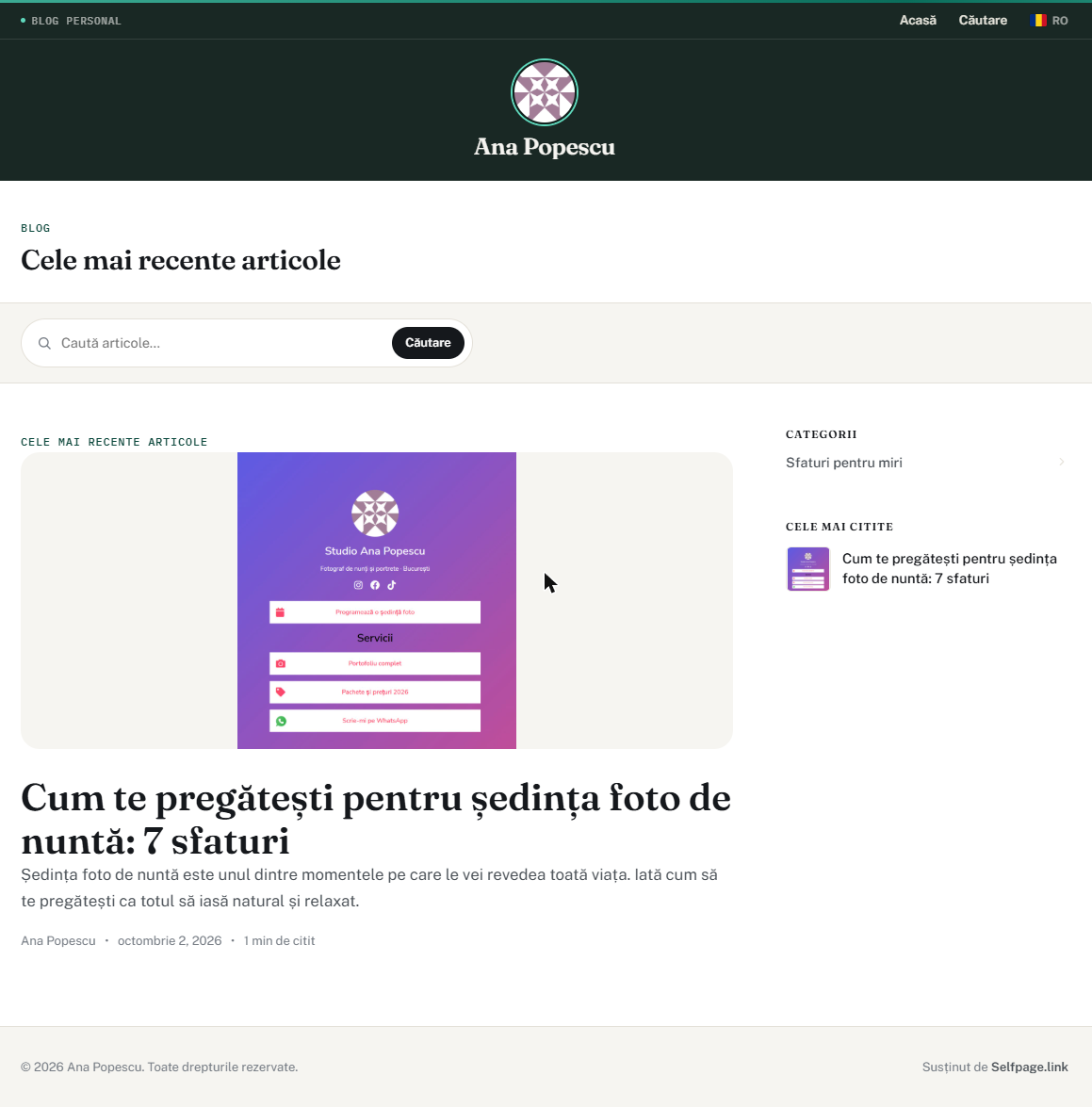
The blog home page
- The header – your photo and the author name, plus the Home and Search menu and the language selector.
- Latest articles – your published articles, newest first, with the featured image, title, excerpt, author, date and reading time. When you have many articles, they're split into pages.
- Search – visitors search the titles and content of your articles.
- Categories and Most read – in the right column, if they're turned on in Blog settings. Clicking a category shows only its articles.
Only published articles appear on the blog. Drafts are visible only to you, in your dashboard.
An article page
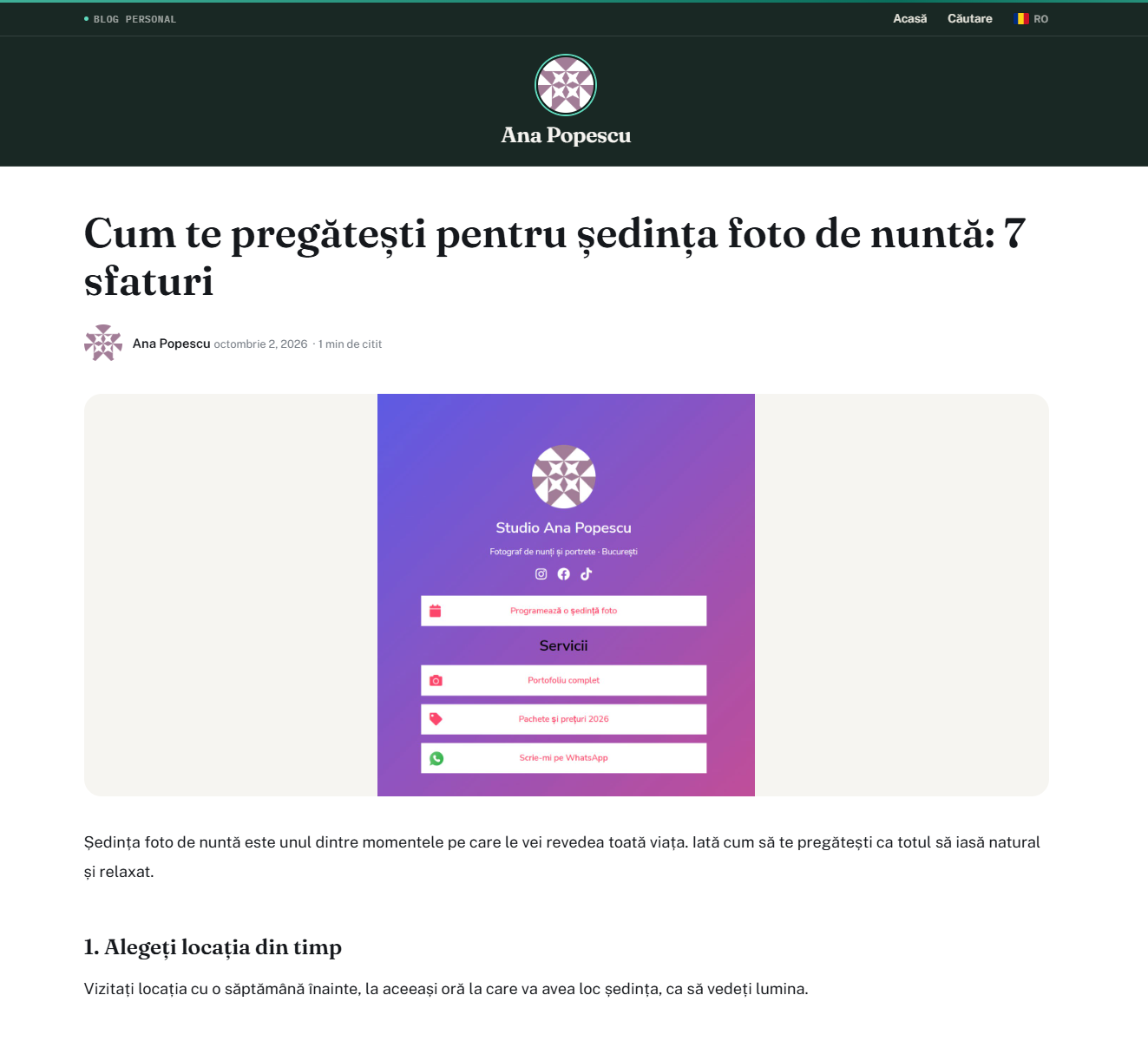
Each article has its own address and shows the title, author, date, estimated reading time, featured image and content. At the end you'll find:
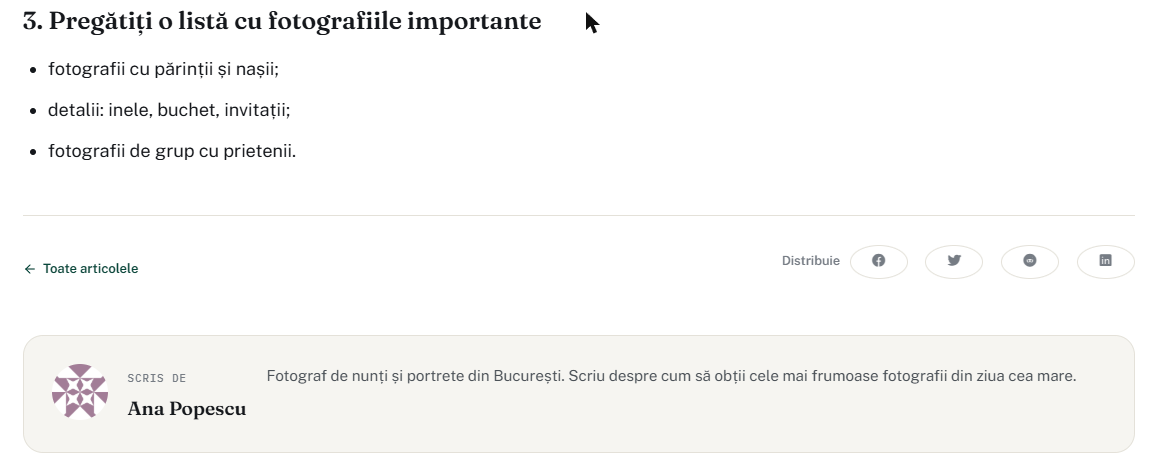
- All posts – back to the blog home page;
- Share – buttons for Facebook, X (Twitter), Reddit and LinkedIn;
- the Written by box, with the author's name and description;
- other articles from the same category, when there are any.
How to promote it
- Add a Link block with your blog address to your bio page (for example "Read the blog").
- Create a short link to a new article, with UTM parameters, to see in your statistics how many visits each channel brings.
- For printed materials, generate a dynamic QR code to your blog.