
QR codes take people from the physical world (flyers, menus, business cards, packaging) straight to your online content with a simple scan.
- In the left menu, click QR Codes, then Create QR.
- On the left, choose the code type (for example Link). See the difference between static and dynamic QR codes.
- Fill in the QR Code Name – it's just for you, so you can find the code easily in your list.
- For dynamic codes, choose the Domain used for the link behind the code.
- Fill in the content (for example, the destination address under Your Link).
- Optionally, customize the Colors and Design – see How do I customize the design of a QR code?
- Click Preview to see the result, then Generate QR.
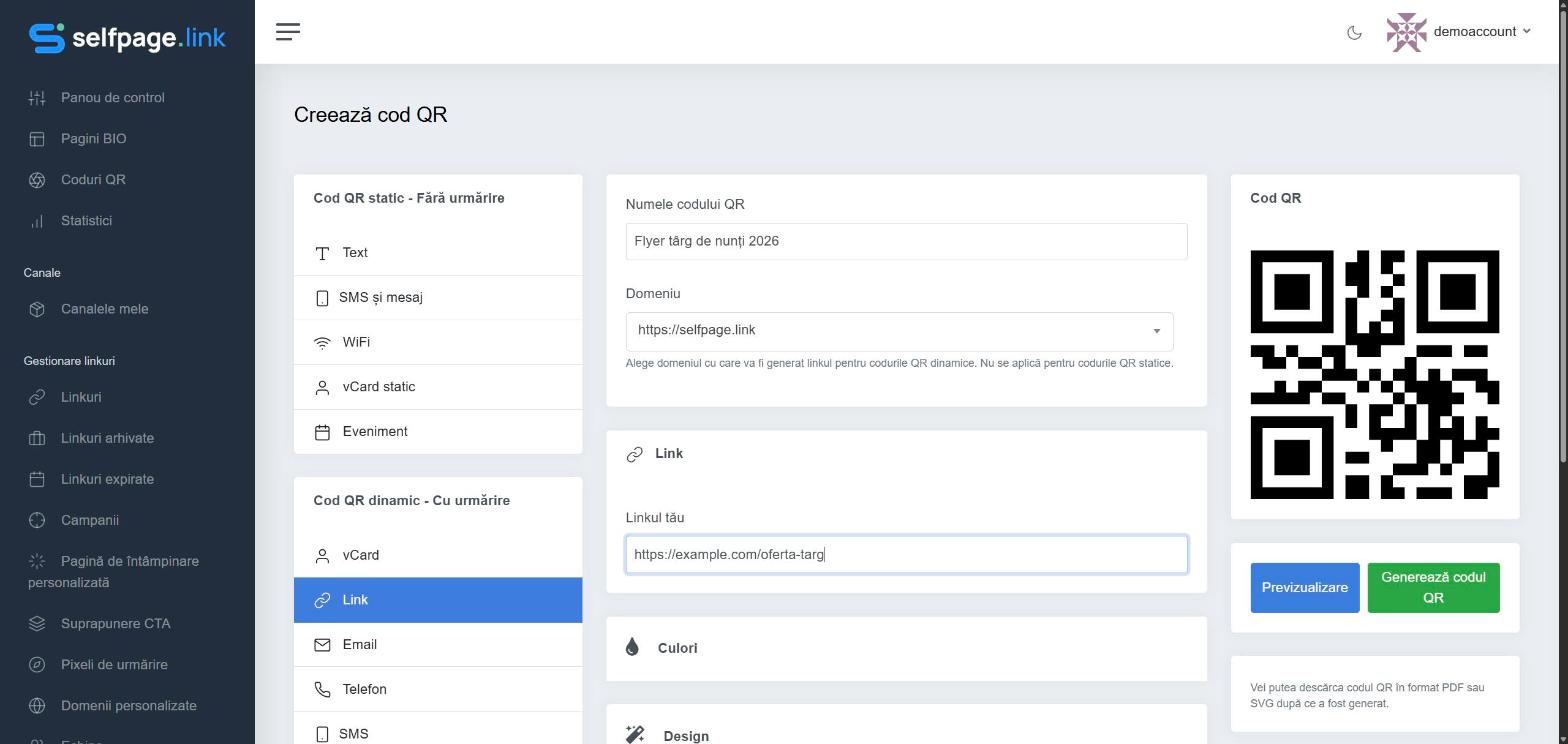
Once generated, the edit page opens, where you can download it right away. See How do I download a QR code?
QR code types
Static (non-trackable): Text, SMS & Message, WiFi, Static vCard, Event.
Dynamic (trackable): vCard, Link, Email, Phone, SMS, File, WhatsApp, Cryptocurrency.
- WiFi – guests join your network without typing the password: fill in the Network SSID, the password (optional) and the encryption type.
- Event – adds the event to the phone's calendar: title, description, location, URL, start and end.
- File – upload an image or a PDF (jpg, png, gif, pdf, up to 2 MB). Perfect for restaurant menus, posters or CVs.
- Email – opens a ready-made email (address, subject, message).
- Cryptocurrency – Bitcoin, Ethereum or Bitcoin Cash, with your public wallet address.
Tip: always test the code with your phone camera before sending it to print.