
A CTA overlay (call to action) is a small, unobtrusive element shown on top of the website your link points to. That way you can promote a product, a discount or a form even when you share someone else's content.
Overlay types
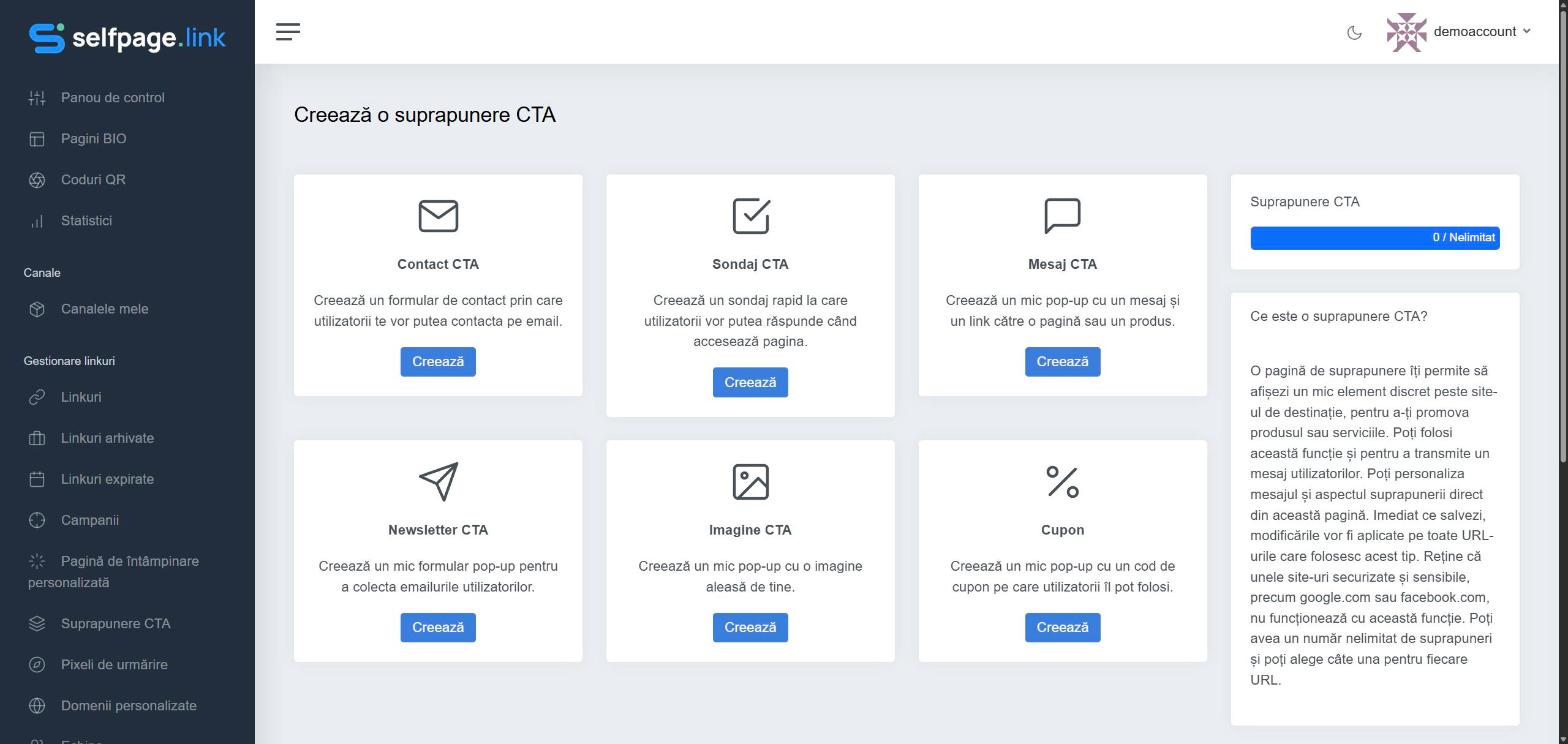
- CTA Contact – a contact form; messages go to the email address you set.
- CTA Poll – a question with up to 10 answer options. You'll see the results on the poll's edit page.
- CTA Message – a short message (up to 140 characters) with a button to a page or a product.
- CTA Newsletter – a sign-up form. The collected emails are downloaded as CSV from the edit page.
- CTA Image – a clickable image.
- Coupon – a discount code visitors copy with one click.
Create the overlay
- Open Link Management → CTA Overlay and click Create a CTA Overlay.
- Click Create under the type you want.
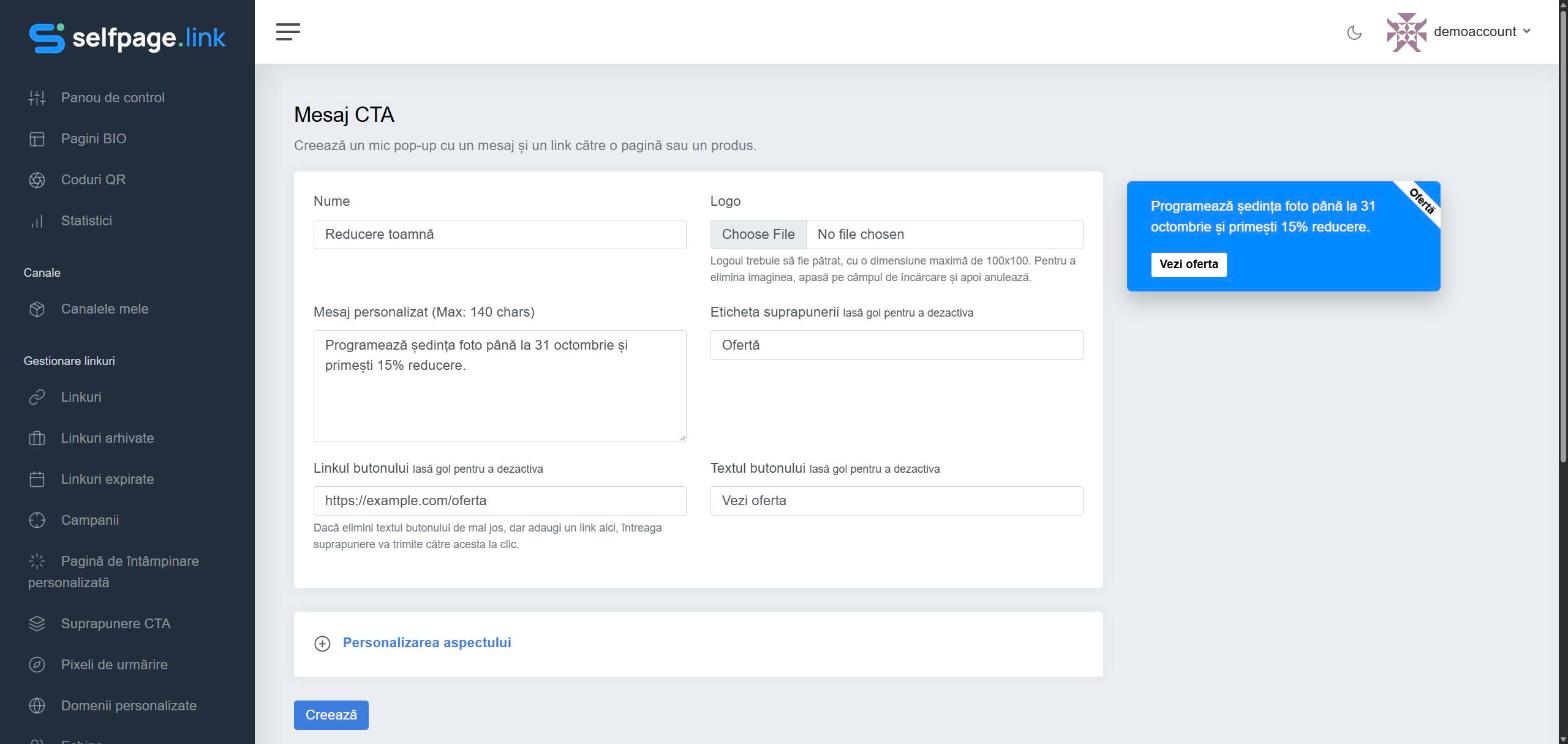
- Fill in the fields. The preview on the right updates as you type.
- Open Appearance Customization for the colors and the position on screen (for example Bottom Left or Bottom Right).
- Click Create.
Use the overlay on a link
When creating or editing a link, open the Redirection list and choose the overlay from the CTA Overlay group. You can use the same overlay on as many links as you like, and any change to it applies to all of them right away.
Limitation: some secure websites (for example google.com or facebook.com) don't allow being shown inside another page, so the overlay won't work on them. Test the link before sharing it.