
The content of a bio page is made of blocks: link buttons, headings, text, images, forms, videos and more. You add them from the editor's Content tab.
Add a block
- Open Bio Pages and click the page you want (or ⋯ → Edit).
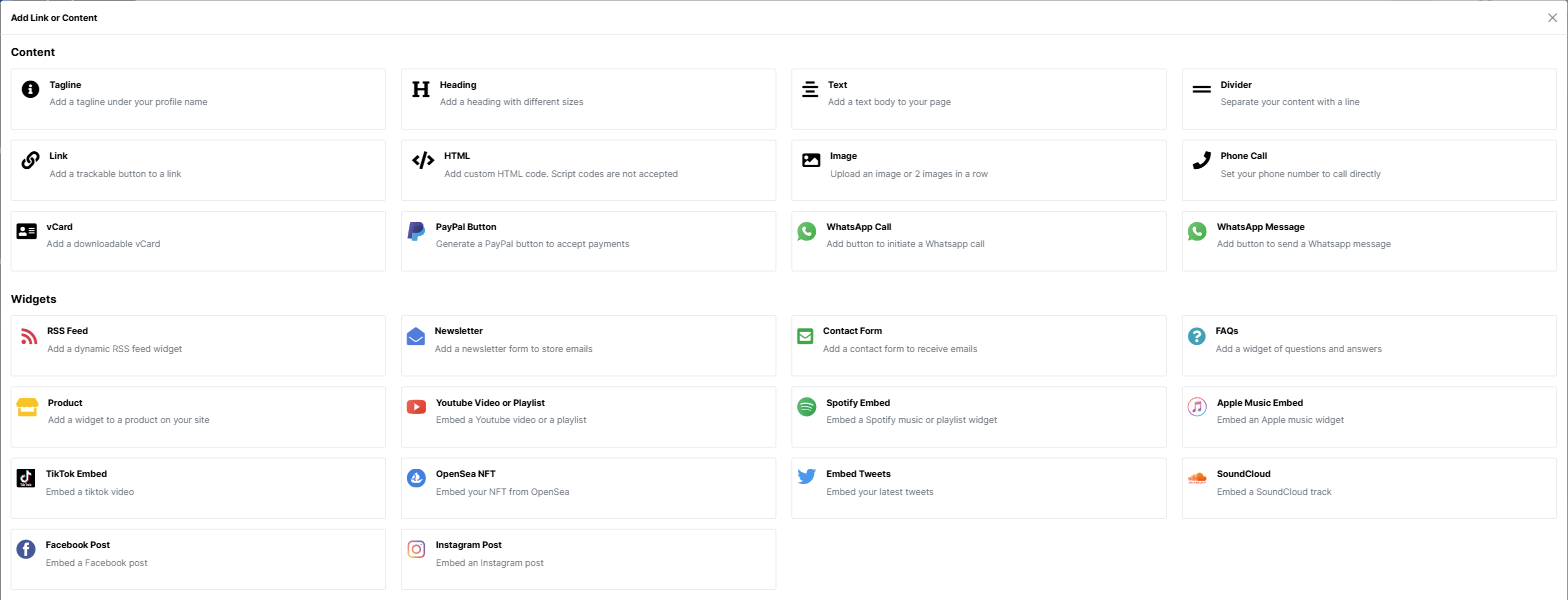
- In the Content tab, click Add Link or Content, below the list of blocks.
- Choose the block type in the window that opens.
- The block appears at the end of the list. Click its title to open it and fill in the fields.
Example: a link button
- Choose Link.
- In Text, write what appears on the button (for example "Book a photo session").
- In Link, paste the full address, starting with
https://. - Optionally, in Icon, pick an icon from the list (for example
fa fa-calendar). - Turn on New window if you want the link to open in a new tab.
- Optionally, choose an attention-grabbing Animation: Shake, Scale, Jello, Vibrate or Wobble.
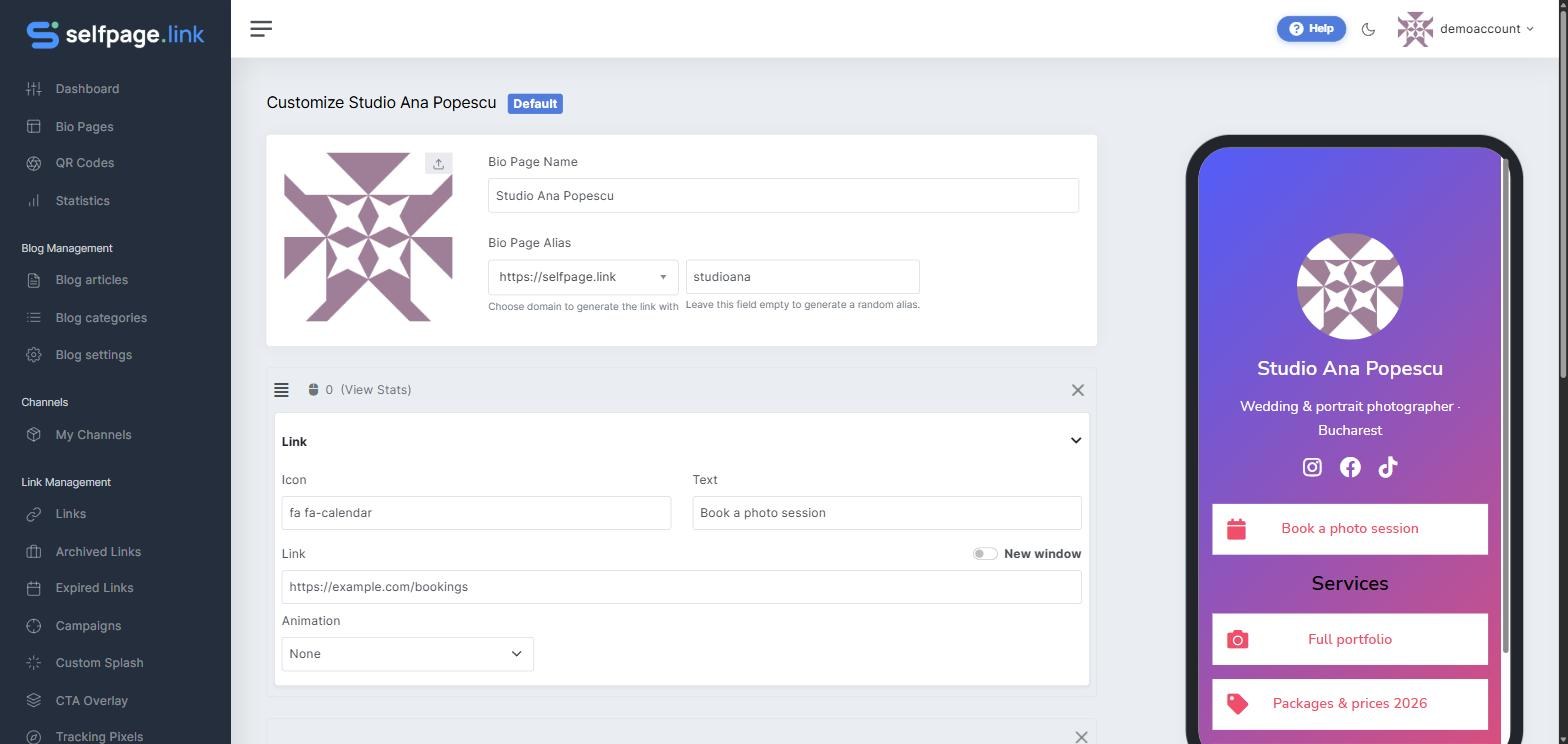
Each Link button is tracked separately: the number next to the mouse icon in the corner of the block shows how many clicks it received.
Which block types are there
Content: Tagline, Heading, Text, Divider, Link, HTML, Image, Phone Call, vCard, PayPal Button, WhatsApp Call, WhatsApp Message.
Widgets: RSS Feed, Newsletter, Contact Form, FAQs, Product, Youtube Video or Playlist, Spotify Embed, Apple Music Embed, TikTok Embed, OpenSea NFT, Embed Tweets, SoundCloud, Facebook Post, Instagram Post.
You'll find a description of each one in What does each block type do?
Tip: put your most important link first. Most visitors click one of the first three buttons.