
Social icons appear as a row of icons (Instagram, Facebook, TikTok and so on) at the top or bottom of your page.
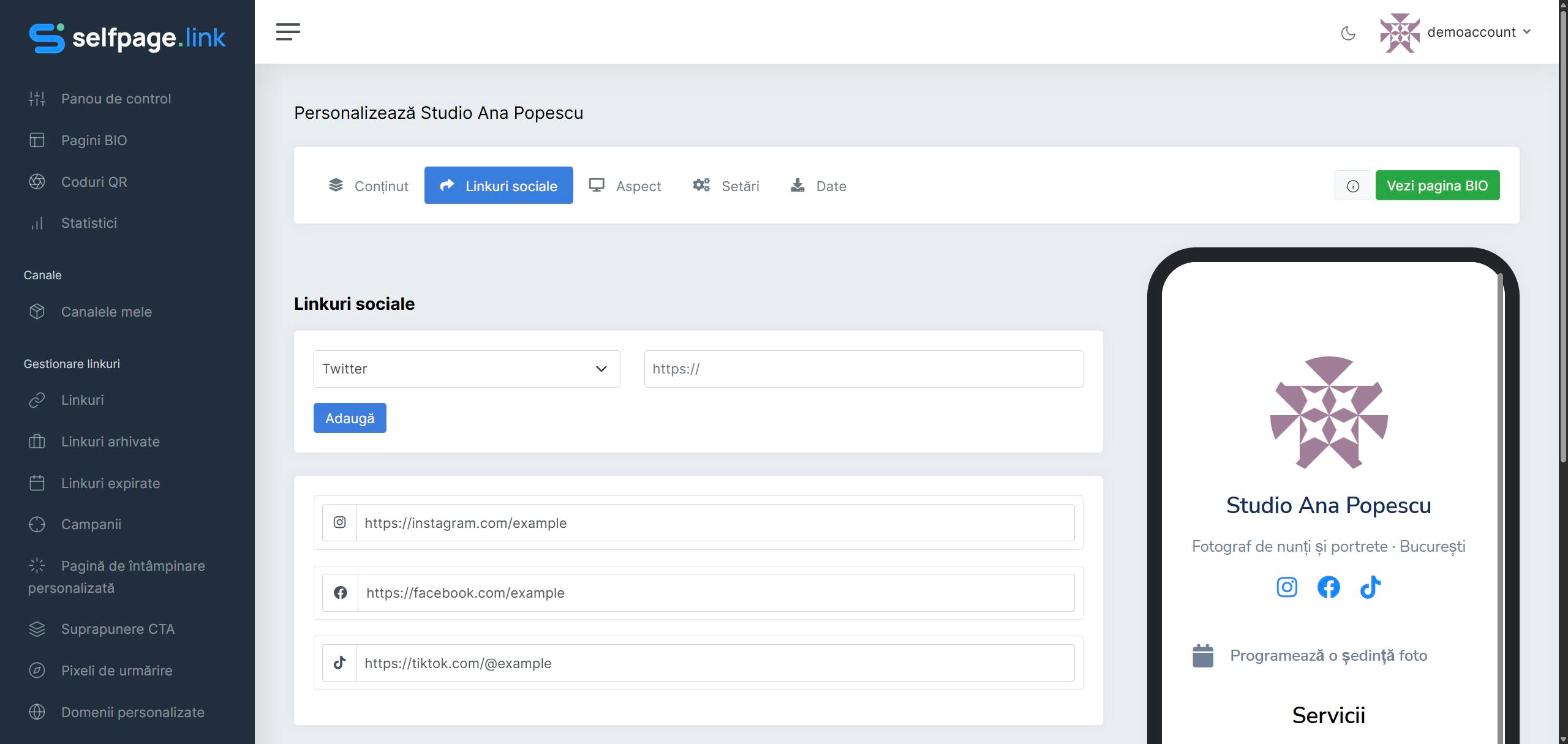
- Open the bio page in the editor and click the Social Links tab.
- Choose the network from the list: Facebook, Twitter, Instagram, TikTok, LinkedIn, YouTube, Telegram, Snapchat, Discord, Twitch, Pinterest, Shopify, Amazon or Line Messenger.
- Paste the full link to your profile (for example
https://instagram.com/your-name). - Click Add. Repeat for each network.
- Under Settings → Position, choose where the icons appear: Top (under your name), Bottom (at the end of the page) or Off.
Change or remove a network
The links you've added appear in the list below the form. Change the address directly in the field; to remove a network, clear the field. Changes are saved automatically.
Good to know: you can add only one link per network. Once you've added a network, it disappears from the list. If you need several links for the same network, use Link blocks in the Content tab.