
The default bio page is the one shown at your public profile address, selfpage.link/u/your-username. For that address to work for everyone you need two things: a default page and your public profile turned on.
1. Set the default page
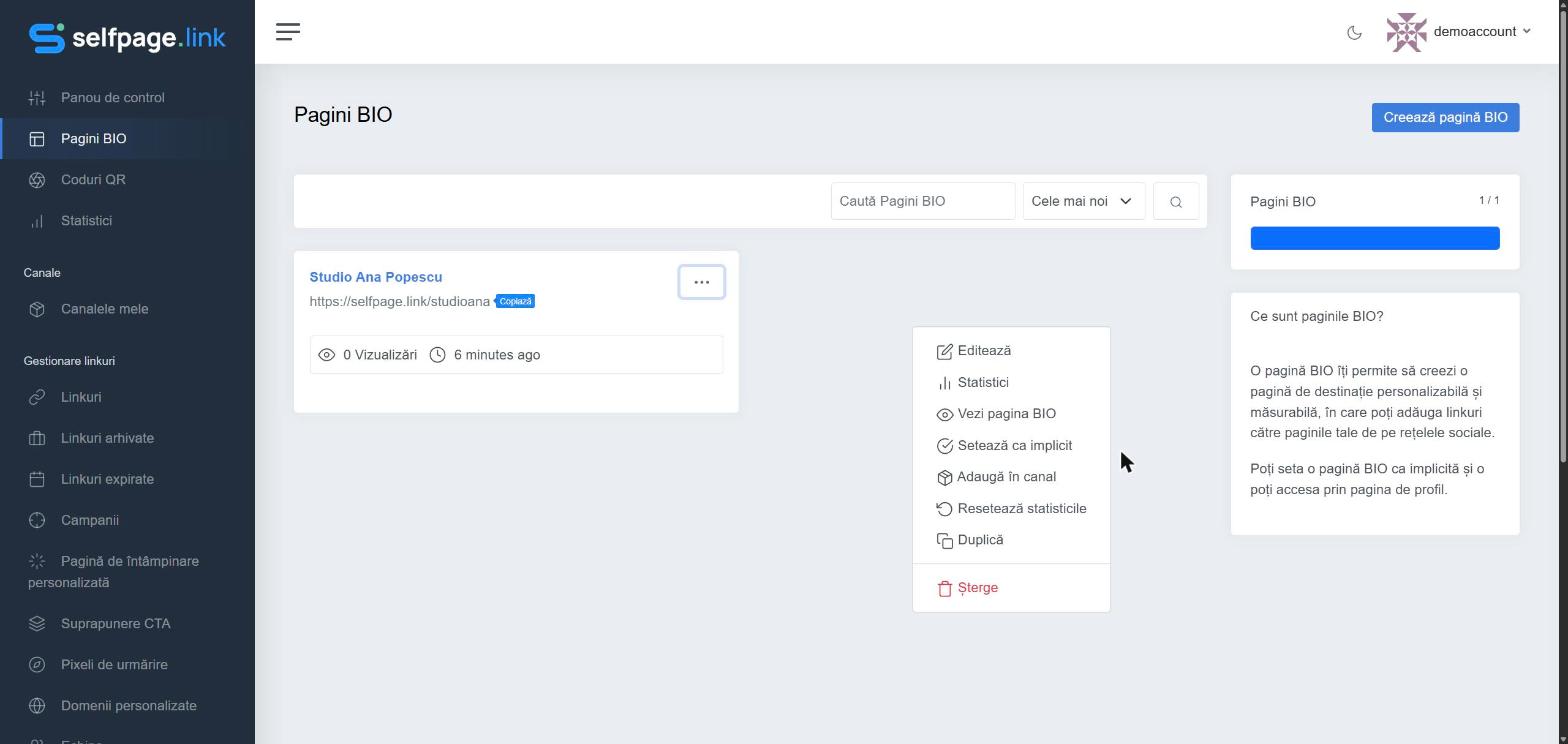
- Open Bio Pages.
- Click the ⋯ in the corner of the page you want.
- Choose Set as Default. The page gets the Default label.
2. Turn on your public profile
- From the account menu (top right) open Settings.
- Turn on the Public Profile option.
- Click Save Settings.
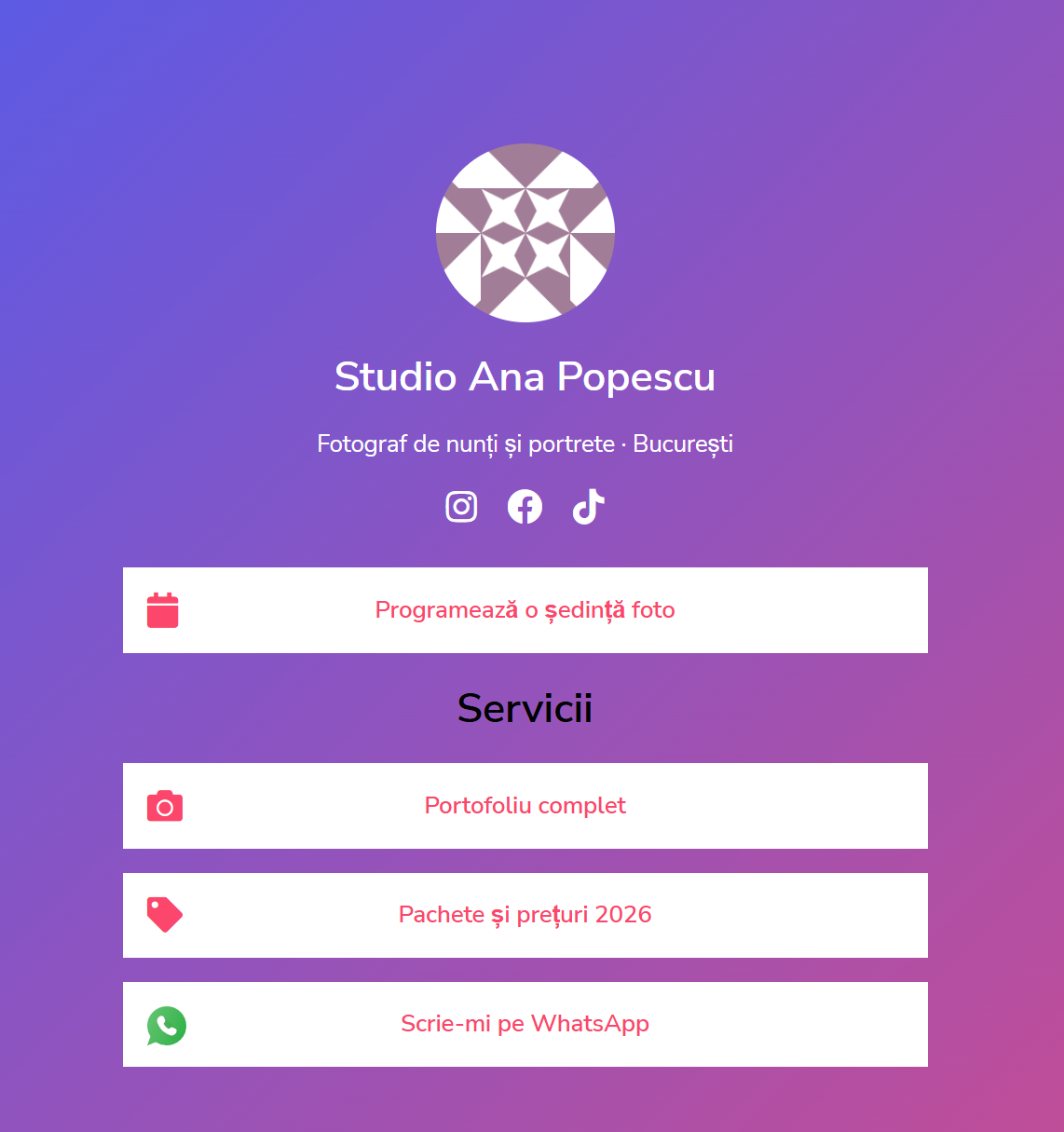
Done! Now anyone who opens selfpage.link/u/your-username sees your default page. The direct link of each page (for example selfpage.link/studioana) works anyway, regardless of these settings.
Why it matters: the default page and the public profile are also needed for the campaign list page and for your personal blog. See How do I create a campaign?