
The dashboard is the first screen you see after logging in. It gives you a quick overview of how your links are doing and lets you create a short link right away.
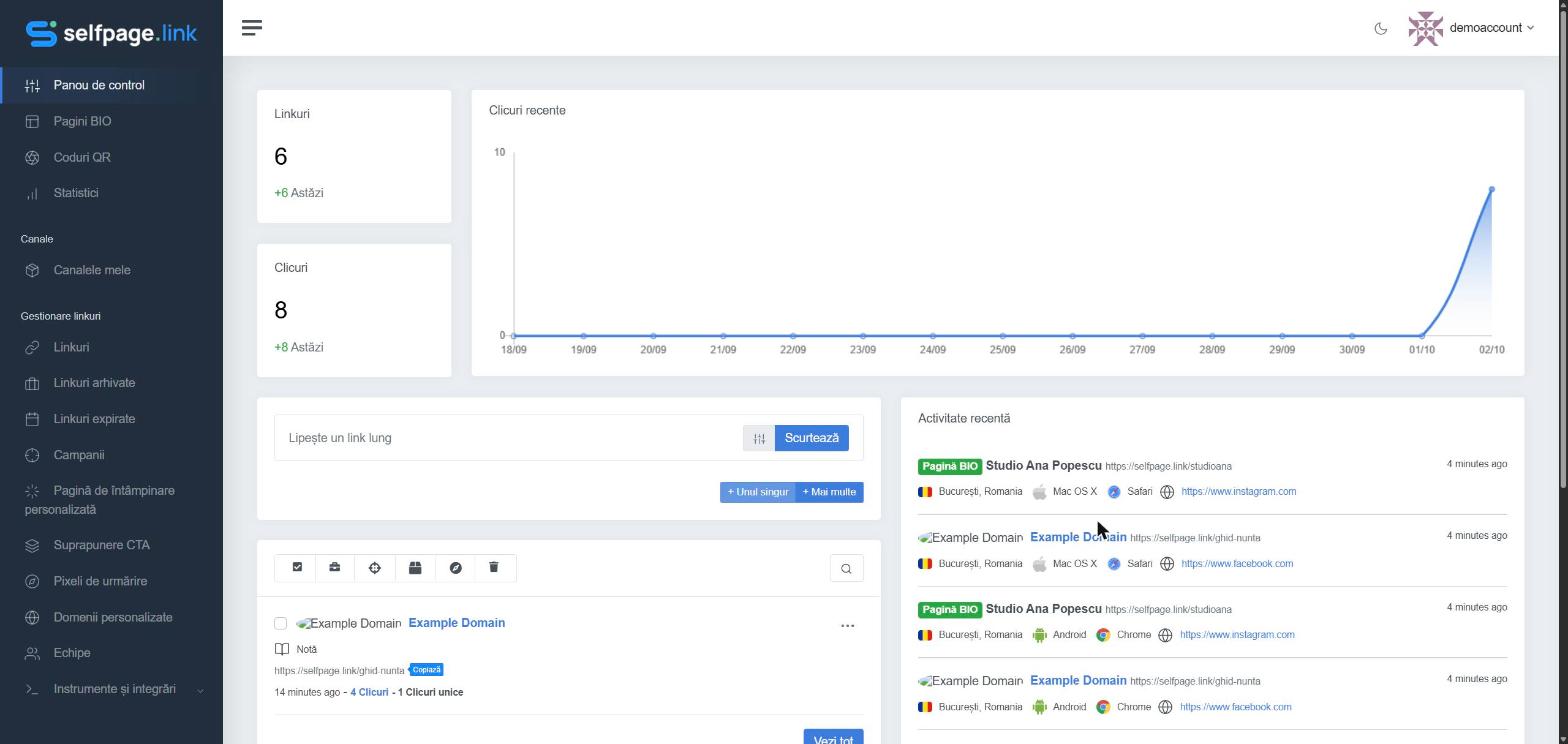
What you see on the dashboard
- Links and Clicks – your totals and how many were added today.
- Recent Clicks – a chart of your clicks over the last two weeks.
- Shortening box – paste a long link and click Shorten. The sliders button opens the advanced options. See How do I shorten a link?
- Link list – your latest links, with their clicks and quick actions.
- Recent Activity – the latest visits: which link or bio page was opened, from which country, on which system and browser, and from which source.
The left menu
- Bio Pages, QR Codes, Statistics – your main tools.
- Channels – group links, bio pages and QR codes by project.
- Link Management – Links, Archived Links, Expired Links, Campaigns, Custom Splash, CTA Overlay, Tracking Pixels, Branded Domains and Teams.
- Tools & Integrations – link import, the Zapier integration and the quick shortening tools.
The top bar
- The Help button opens the help center right in your account, with articles about the page you're on. You can also press ? on any page.
- The moon icon switches between light and dark mode.
- Click your name for Public Profile, Billing, Get Verified, Settings, Help Center and Log out.
Tip: on a phone, open the left menu with the three-line button in the top-left corner.