
The whole design of the page is set up in the editor's Appearance tab. Every choice is applied and saved immediately.
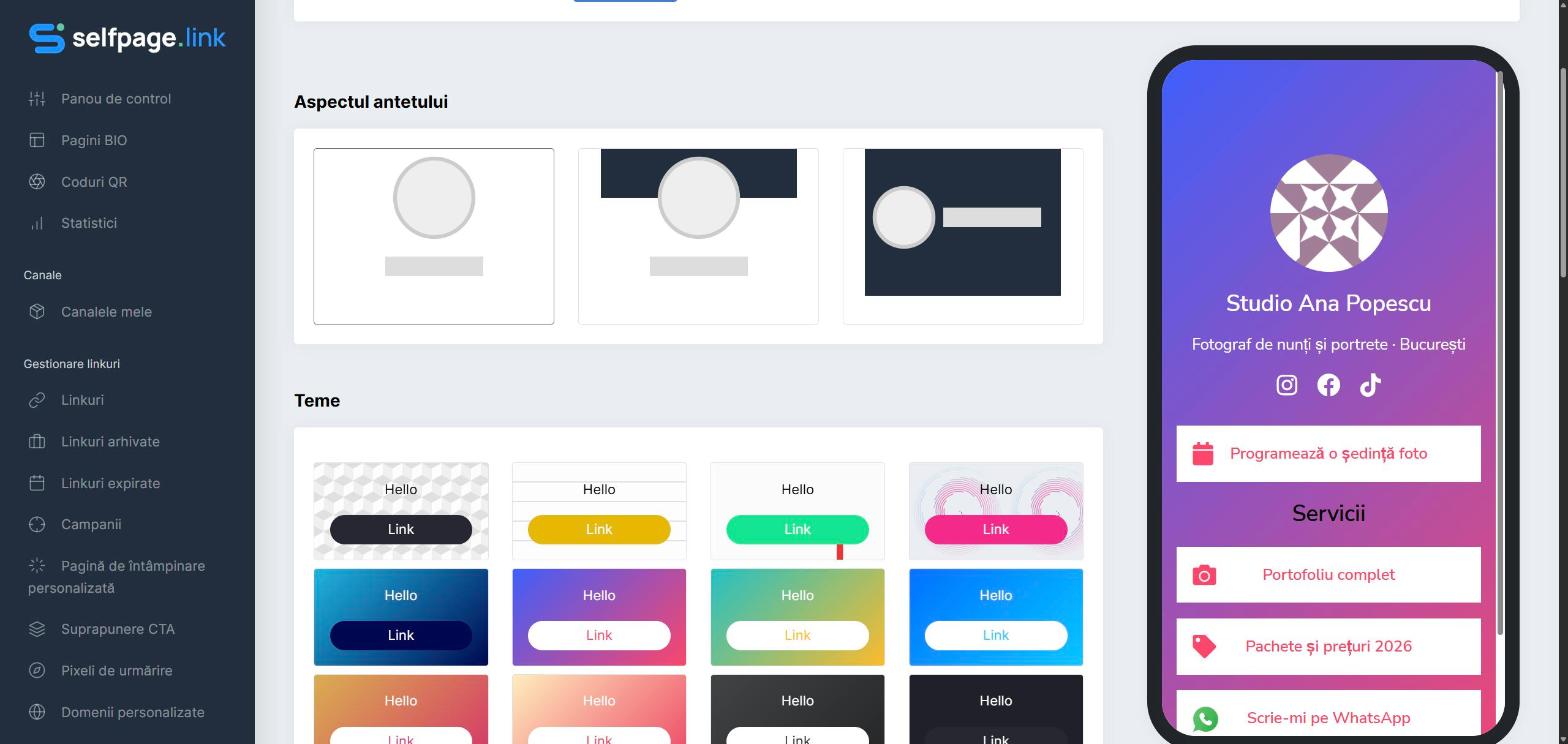
Header Layout
Choose one of the three header layouts:
- a centered round avatar with the name below it (the classic layout);
- a banner at the top, with the avatar overlapping it;
- a banner across the whole top area, with the avatar on the left and the name next to it.
For the last two, the Header Banner field appears, where you upload the banner image (JPG or PNG).
Themes
Click one of the ready-made themes: textures, colorful gradients, the dark theme or white themes with colored buttons. The theme sets the background and button colors; you can then fine-tune them by hand in the sections below.
Fonts and text color
Under Fonts, click the font you want (hover over it to see its name). Under Text Color, choose the color of the name, tagline and text.
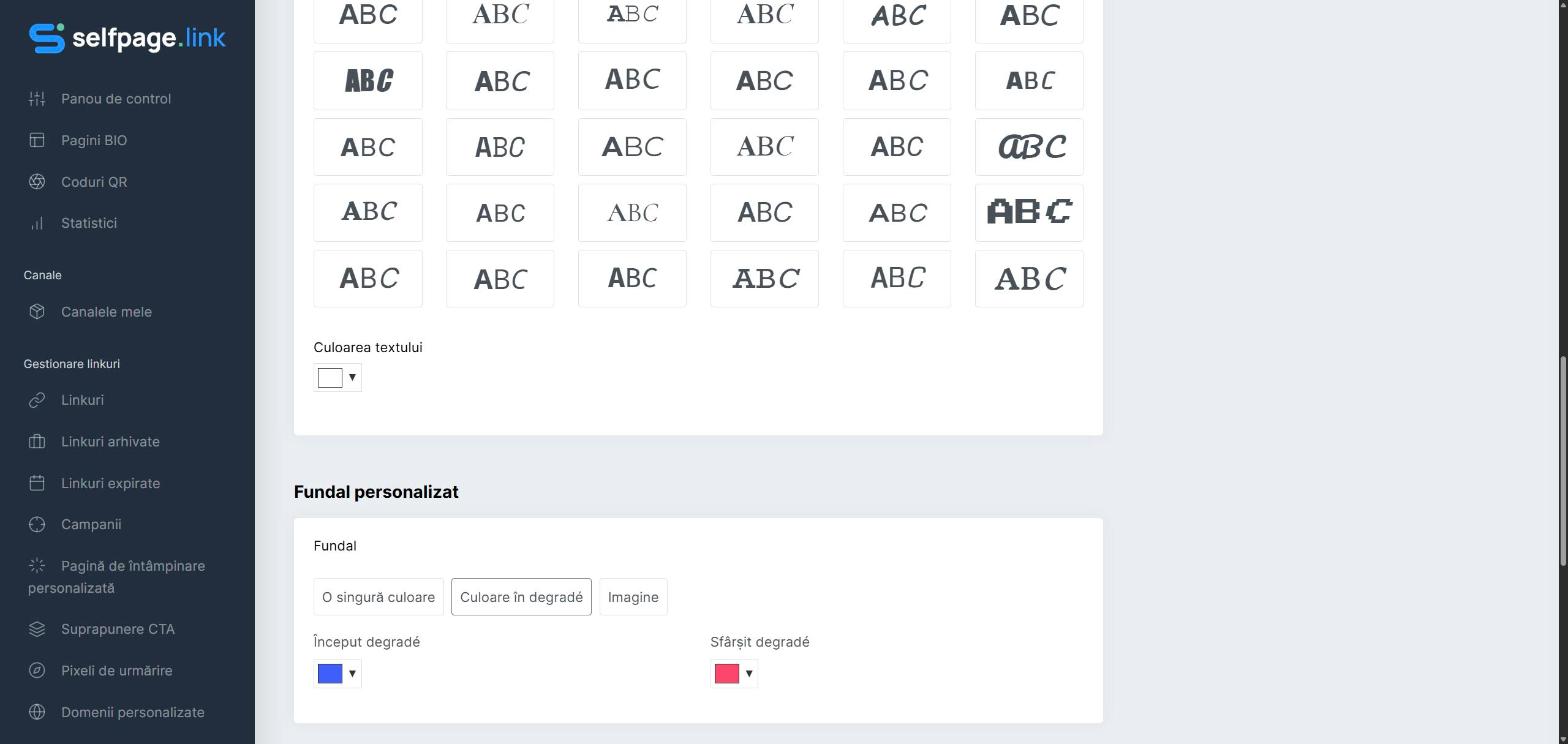
Custom Background
- Single Color – choose the background color.
- Gradient Color – choose the start and end colors of the gradient.
- Image – upload a background image (JPG or PNG, up to 1 MB).
Buttons
- Button Color and Button Text Color.
- Button Style: Rectangular, Rounded, Transparent Rectangular or Transparent Rounded.
- Button Shadow: None, Soft or Hard, plus the Shadow Color.
Tip: make sure there's good contrast between the background, buttons and text, especially if you use a background image. Check the page on your phone too, with the View Bio button.
Want full control over the design? You can add your own code under Settings → Custom CSS. See Advanced bio page settings