
A campaign groups several links with the same goal (for example "Black Friday" or "Wedding fair"). It gives you combined statistics, a rotator link and a list page with all the campaign's links.
Create the campaign
- In the left menu, open Link Management → Campaigns.
- Click Create a Campaign.
- Fill in the Campaign Name (required).
- Optionally, fill in the Rotator Slug – the alias of the rotator link (for example
weddings2026). - Turn on Access. If it's off, the rotator link doesn't work and the campaign shows as Inactive.
- Click Create Campaign.
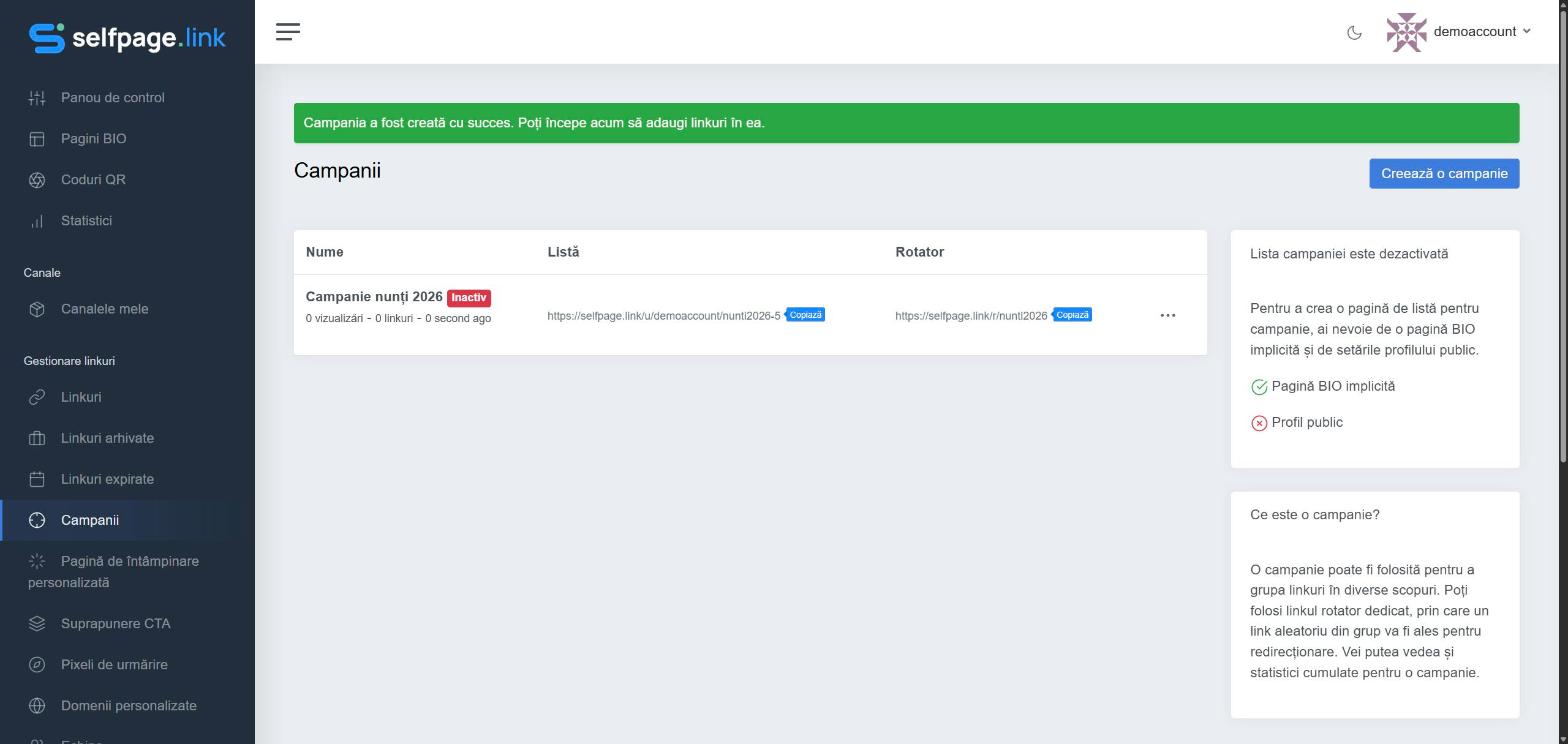
Add links to the campaign
- From Links: tick the links, click the Add to Campaign icon in the top bar and choose the campaign.
- From a link's edit page: choose the campaign in the Campaign field and click Update Link.
The rotator link
An address like selfpage.link/r/weddings2026 sends each visitor to a randomly chosen link from the campaign. It's handy for splitting traffic between several offers or pages.
The list page
The address in the List column shows all the campaign's links on a single page. For the list page to work, you need a default bio page and your public profile turned on – see default page and public profile. The box on the right shows you what's missing.
Statistics, editing and deleting
From the campaign's ⋯ menu you can see the combined statistics (with CSV export), edit it or delete it. Deleting a campaign doesn't delete the links in it.